
Part 1: Prepare the Management Portal
Required role: Global Administrator or School Administrator
Note:
Preferences Manager is available in two editions: Lite and Manager.
In the Lite edition, some advanced features are not available. These appear as greyed-out (inactive) items in the task list and cannot be selected. View comparison
In the full Manager edition, all tasks in the task list are active. A free trial of the Manager edition is available from our website
Step 1: Sign in and confirm school settings
Sign in to the Management Portal at
https://timetabling.educationOpen [2A] Manage School.
Confirm the timezone is correct.
The timezone is used to record the date and time of student submissions on receipts.
Click Setup Using Timetable.
First, open your timetable file and go to task [7D] Class Names to ensure the subject codes and subject names are correct. We also recommend you click 'Remove Unused Class Names'.Select your current timetable file to import:
Students
Subjects
Year levels
Note:
If you do not yet have access to a timetable file, you can manually add or import data from Excel (XLSX) in later steps.
Step 2: Import users (students)
Required role: Global Administrator or User Administrator
Go to [1A] Manage Users.
Click Import to add student accounts from XLSX/CSV, Timetable File or Microsoft Entra.
Tip – create test access:
Consider adding:
A test student (If not using SSO, it can be a fake email address, and manually create a password)
A student code to your own user account (double-click your username on task 1A Manage Users to add a student code). This allows you to add yourself as a student to any group for testing purposes and works with SSO enabled.
Step 3: Add year levels (if you were unable to import them from your timetable file)
Go to [3A] Year Levels.
Add the required year levels.
These are used later to filter students when creating student groups.
Step 4: Assign year levels to students
Go to [3B] Students.
Ensure every student has a year level assigned to them.
This should be the student's current year level.
Use Bulk Edit to update multiple students at once if required.
If your roll class value includes the year level, from the top menu, click 'Bulk', enter the year level number in the top roll class field to filter the students, click the top left checkbox to select all students, click 'Edit', select Year Level, enter the value and click Save.
Step 5: Add subjects
Go to [4B] Subjects.
Click Import to add subjects.
Recommendations:
Add administrative subjects such as “Not returning next year” if required.
Add subject descriptions; these can be displayed to students during subject selection.
Part 2: Create a Student Group in Preferences Manager
Required role: Preferences Manager
Step 6: Open Preferences Manager
Click the app selector (9 dot grid icon, top-right of the screen, next to the bell icon)
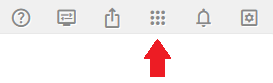
Open Preferences Manager, or go directly to:
https://pm.timetabling.education
Step 7: Create a new student group
Click New.
Enter a clear, meaningful name, for example:
“Students Year 9 – 2027”
(Year 9 students making subject selections for the 2027 academic year.)
Add students
Click Filter Students.
Apply your preferred filters (for example, by year level).
Tick the top-left checkbox to select all listed students.
Untick any students who should not be included.
Add subjects
Click Filter Subjects.
Apply your preferred filters.
Tick the top-left checkbox to select all listed subjects.
Untick any subjects that should not be available to this group.
Step 8: Create and configure the group
Click Create.
Configure the group settings:
Maximum Units (excluding reserves)
– The maximum number of units a student can select.Maximum Number of Submissions
– How many times can a student submit and revise selections?
Recommended: 10Subject Display preference
Click the Save icon (top-right of the screen).
Part 3: Configure Instructions
Step 9: Instructions
Preferences Manager Lite supports the following instruction types:
Initial Instructions
Displayed when students first sign in to the Student Portal, before subject selection.Selection Instructions
Displayed at the top of the Preference Selection screen while students make selections.Offline Instructions
Displayed if a student attempts to sign in while the group is offline.
Note:
Receipt / Confirmation Instructions are not available in the Lite edition.
Part 4: Manage Students and Subjects
Step 10: Students
The Students screen lists all students in the group.
 Use the impersonation icon, located on the left of the student, to open the Student Portal as that student.
Key fields:
Online
When enabled, the student can sign in and make selections.
Username is the student’s email address.
Students can reset passwords using Recover my account on
https://timetabling.education
Preferences
Shows the number of units selected (excluding reserves).
Double-click a student to:
View submitted preferences
Remove a submission receipt
Step 11: Subjects
The Subjects screen lists all subjects in the group.
Subjects can be:
Added manually, or
Imported from the Management Portal [4B] Subjects list
Importing from the portal ensures:
Centralised subject descriptions
Automatic updates if subject names change
Key fields:
Unit Value
Used for subject weighting
Defaults to 1 if not imported
Number of Sub-grids
Indicates how many sub-grids the subject appears on
Enabled
Determines whether a subject is selectable by students
Disabled subjects are used in the Manager edition when creating subject rules. For example, Year 9 Italian can be disabled (not selectable) but still used as a prerequisite for Year 10 Italian.
Gender
Restricts subject availability by gender if required
Part 5: Preference Groups
Step 12: Preference Groups
A Preference Group controls how students select subjects and ensures curriculum rules are met. The Lite edition is restricted to a single Preference Group; the Manager edition is unlimited.
Key fields:
Preference Group Name
Identifies the group and can include brief instructions
Example: “Please select one Mathematics subject”
Preference Boxes
Number of selection boxes shown to students
Subjects
Add or manage subjects in the group
If a subject is missing, check that it is enabled in the Subjects task
Part 6: Test the Student Portal
Step 13: Test submissions
Click the Student Portal to log in as the test student on https://timetabling.education (see Step 2 for how to create a test student)
Submit preferences and confirm:
Instructions display correctly
Units and preference limits behave as expected
To view or remove a submission:
Open [3] Students
Double-click the student
Open the Submitted Preferences tab
Part 7: Collect Preferences
Step 14: Advise students
Ask students to sign in at:
https://timetabling.education
Communicate clearly:
How many times can they submit and revise preferences
When the portal closes
That submission receipts remain viewable after the portal closes
Step 15: Monitor progress and remind students
Open [16] Student Status Report.
Review which students have:
Submitted preferences
Not yet submitted
Click Share to generate a view-only link for other staff.
Part 8: Export Data
Step 16: Export preferences
Go to the Home page in Preferences Manager.
Select the student group.
Click Export Data.
Choose to:
Link to an existing Student Options file, or
Create a new V10 Student Options file
The exported data is now ready for use in your timetabling workflow.