
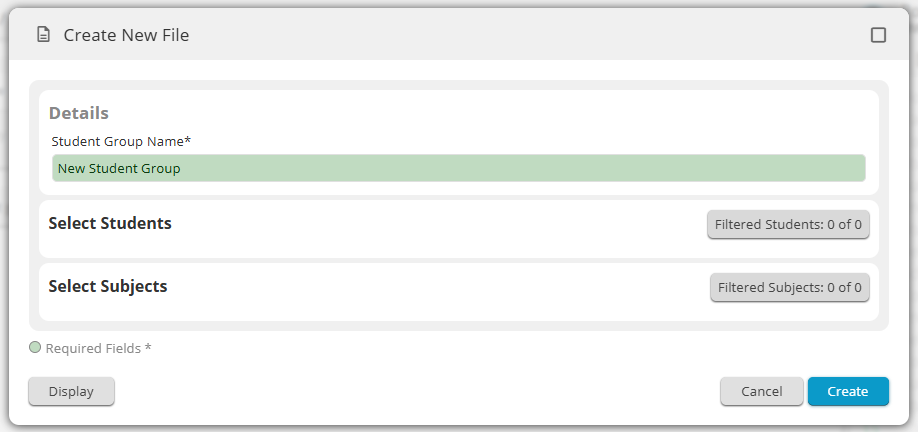
When creating a new file in Preferences Manager, you may see the message “Filtered Students: 0 of 0” and “Filtered Subjects: 0 of 0” in the Select Students and Select Subjects sections.
This indicates that no student or subject data has been uploaded to the Management Portal.
Preferences Manager draws its data from your school’s central records in the Management Portal.
If these lists are empty, the Preferences Manager cannot display any options to select.
Why this occurs
This situation happens when:
- Task 3B – Students have no student records.
- Task 4B – Subjects have no subject records.
Your Global Administrator or School Administrator completes these tasks.
Until these records are added, Preferences Manager will show no available students or subjects when you attempt to create a Student Group.
1. Understanding Task 3B – Students
The Students page in the Management Portal serves as a master list of students for all cloud applications, including Preferences Manager, Daily Organiser, Staffing, and others.
Although functionality is still expanding, this list already synchronises core student details across integrated apps.
For example:
Updating a student’s name in Task 3B – Students will automatically update their name throughout the system.
When creating a Student Group in Preferences Manager, the student list is sourced directly from this task.
Important Note
Adding a student to Task 3B does not automatically create a login for their Student Portal.
A student will only appear in Task 1A – Manage Users if the User checkbox is ticked and they have an email address.
2. Adding Students to Task 3B
Administrators can populate the student list in several ways:
Manual Entry
Add individual student records, including:
First Name
Family Name
Code
Gender
Year Level (must exist in Task 3A – Year Levels)
Import Options
Upload bulk student data using:
CSV or XLSX template
Student Options data file
Timetable Development data file
Sync Options
Automatically synchronise students via:
Task 7A – SIF/LISS Integration
Optional Student Information
Additional fields support advanced functionality, such as parent approval workflows in Preferences Manager:
Middle Name
BOS Code
Roll Class / Home Group / House
Email Address
Phone Number
Address
Parent/Caregiver email address (used for sending approval requests, they are no longer manually entered by the student at selection)
If your school plans to use parent approvals, ensure the Parent/Caregiver email address is included.
3. Understanding Task 4B – Subjects
The Preferences Manager also requires that your school subject list be added via Task 4B – Subjects.
This list forms the basis of:
Student selections
Rules and prerequisites
Subject group configuration
If no subjects are uploaded, the Preferences Manager will not have any subjects to assign to a Student Group.