TIMETABLE FILE
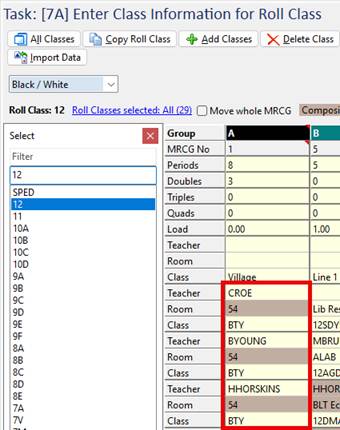
- Go to [7A] Class Information
- Add in the classes that will have multiple teachers
- Make these classes composite by assigning the same room to them
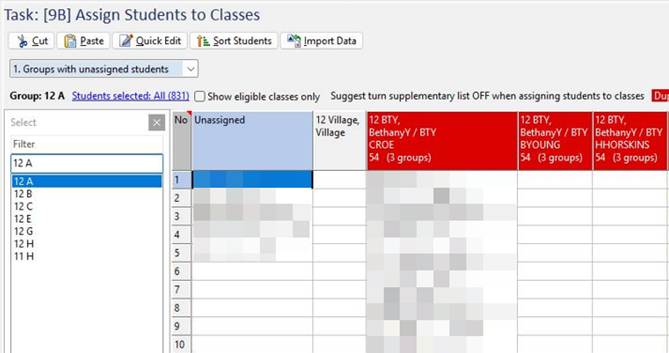
- Go to [9B] Students to Classes and assign students to classes
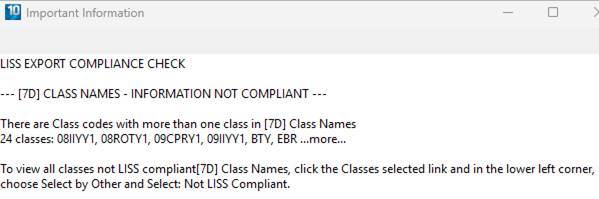
- Click on File > LISS Pre-Export Compliance Check. Note the message that class codes, which are attached to multiple classes, are not LISS compliant. We can ignore this.
- Go to [7D] Class Names
- Click Remove Unused Class Names, then Yes and OK
- Click
 , then Publish Timetable.
 - Work through the steps to publish the timetable to the correct Campus, Academic Year, and future date.
- Wait for the confirmation email that the timetable has been successfully published
MANAGEMENT PORTAL
- Log in to the Management Portal
- Go to [7A] SIF/LISS Integrations, right-click on your Daymap LISS Provider and select Synchronise
DAYMAP
- Log in to Daymap
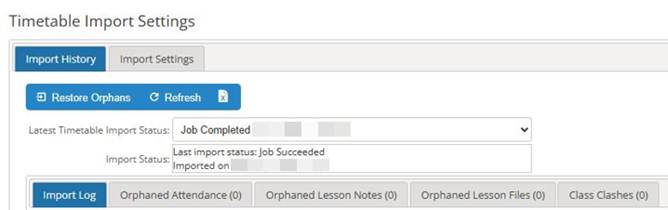
- Manually import the timetable
In this example, Village Bethany has three teachers assigned who can all mark the roll for the class depending on how that organised their own Village (Care Group):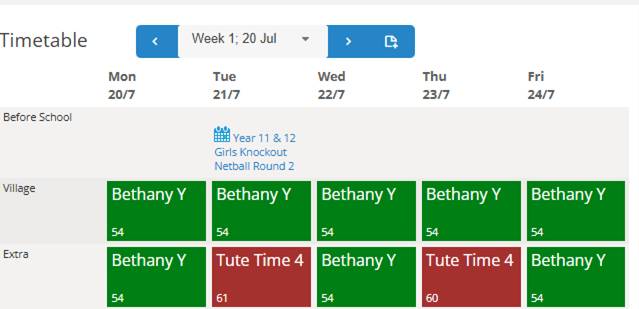
All three staff are listed in Daymap as being able to mark the roll: