
Use Scheduled Tasks to automatically send reminder emails to parents and caregivers who have not yet confirmed a student's subject preferences.
Create the scheduled task
- Open Scheduled Tasks.
- Click Add.
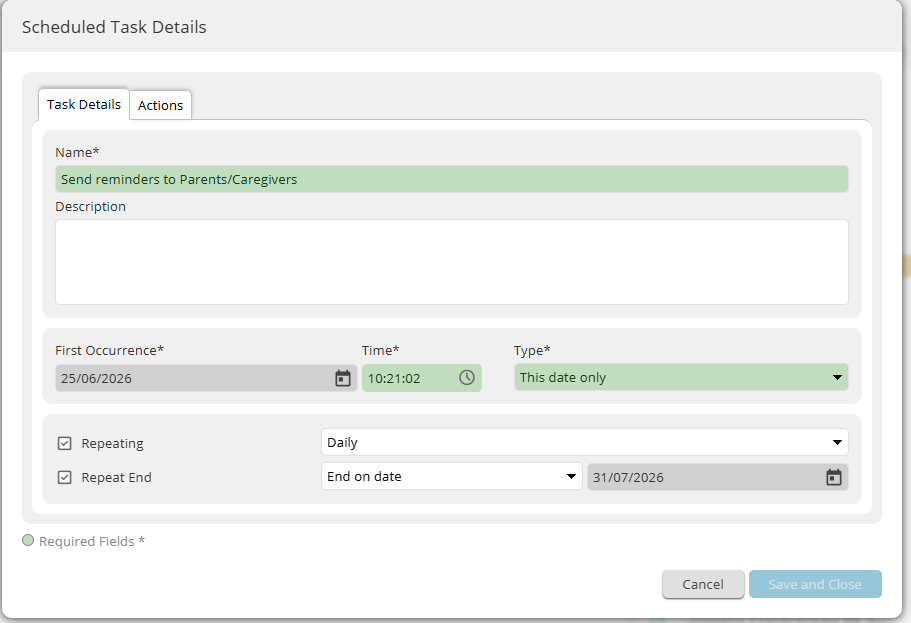
- Enter a Task Name.
- Select the Date and Time for the first occurrence.
- Choose the Repeat schedule (for example, Daily or Weekly).
- Select the Actions tab.
 Configure the email action
- Click Add.
- Select Email Action.
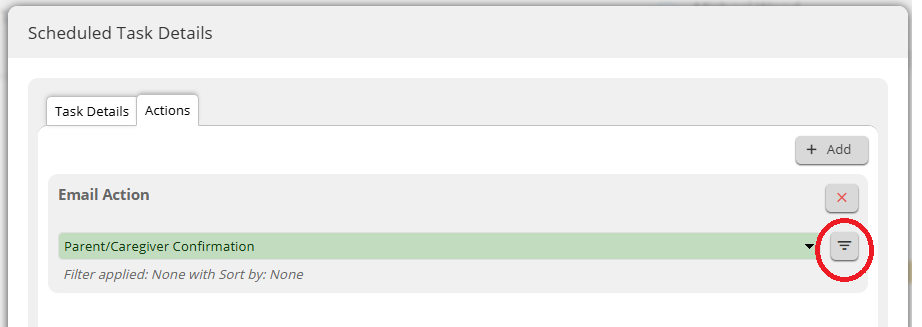
- From the Template drop-down list, select Parent/Caregiver Confirmation.
- Click the Filter button.
- Click Add Filter.
- From the filter list, select Submissions.
- Set the value to Parent/Caregiver confirmation pending.
- Click Apply.
- Save and Close the scheduled task.
The task will now automatically send reminder emails only to parents and caregivers who have not yet confirmed their student's subject preferences.
Note: the scheduler runs on a 15 minute interval, so a task set to execute at 12:00 may take up to 12:15 to complete