Note: this instruction applies to the Preferences Manager application (not the Web Preferences Manager).
Prerequisite rules require the use of completed subjects. Completed subjects are used to restrict a student’s subject choices.
In this case, where the student group is for Year 10 next year, the subjects the students are currently studying in Year 9 would need to be imported.
Completed subjects are initially imported to the Master List in the Management Portal by the Global Administrator, School Administrator or Timetabler.
They can then be added to a student group when it is created or imported into an existing one.
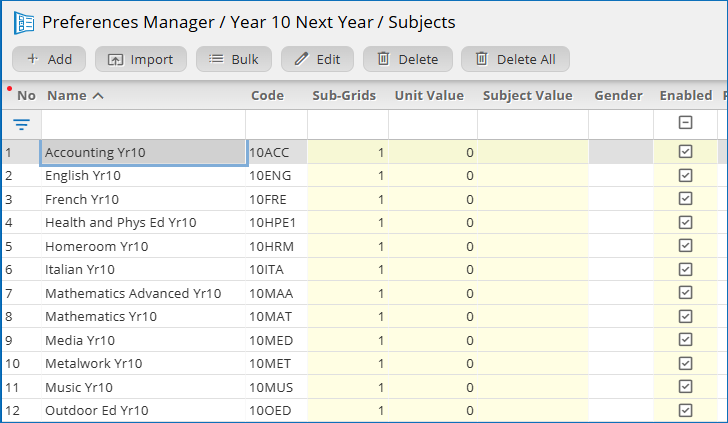
On the Task Tree, select: [4] Subjects.
Click Import
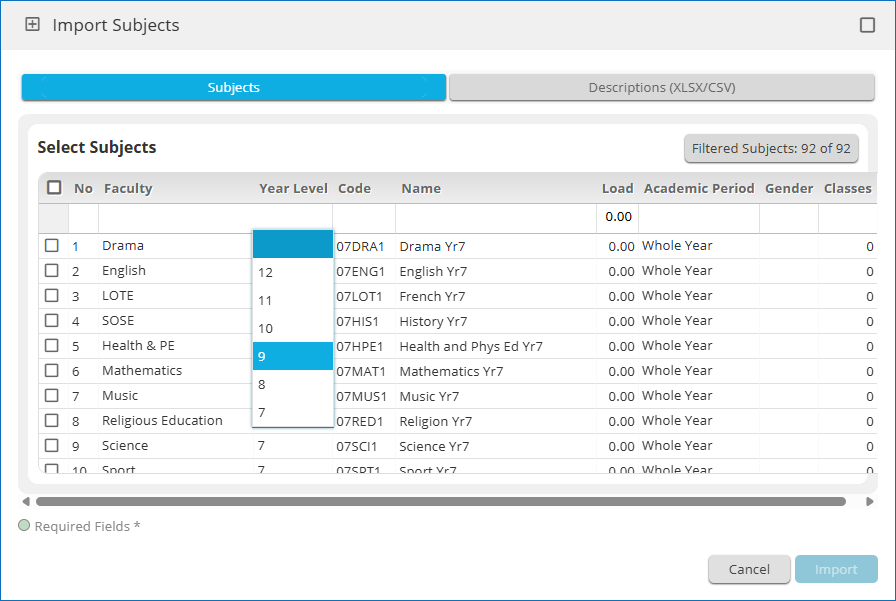
Click Subjects |

Click the Year Level drop-down menu in the filter row and select the current year level for the students in the Student Group |
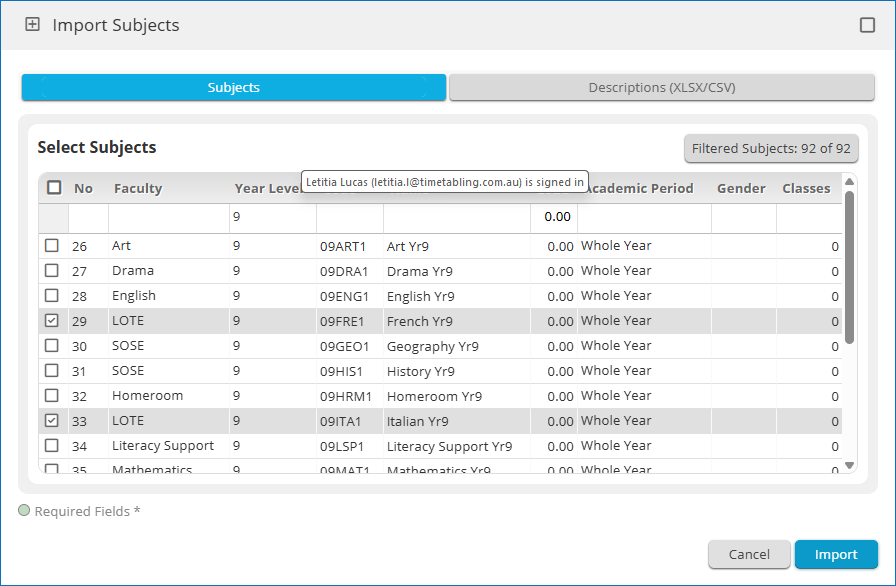
Tick the checkboxes for the subjects that will be prerequisites and click Import |
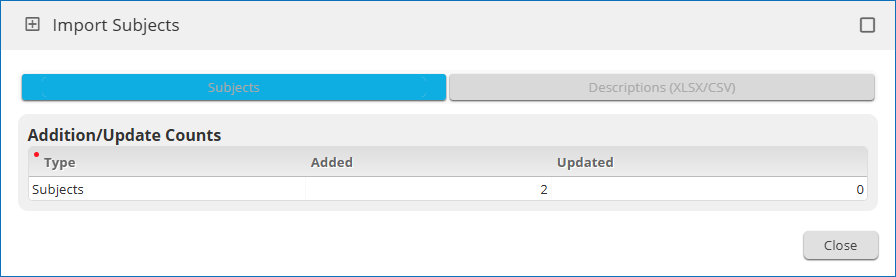
The subjects have been imported. Click Close |
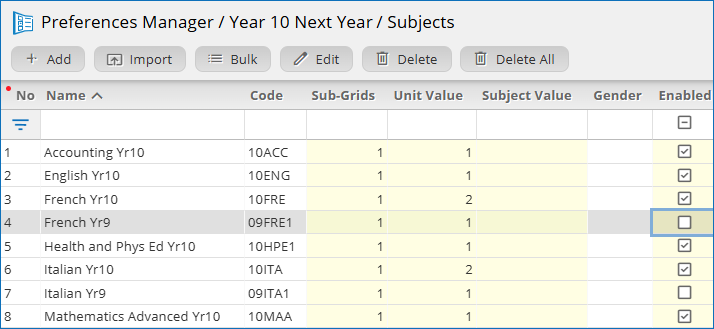
Untick Enabled for the completed subjects so that they will not be available for selection |
On the Task Tree select: [3] Students
Click Import
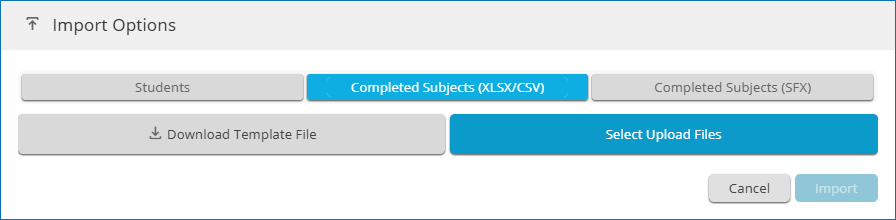
Completed subjects can be imported from Microsoft Excel or a Timetabling Solutions Student Options file. Click Completed Subjects (XLSX/CSV) |

A Template File is available for download if importing completed subjects via XLSX/CSV. Required fields are student code and option code/s. Click Completed Subjects (SFX) |
Click |

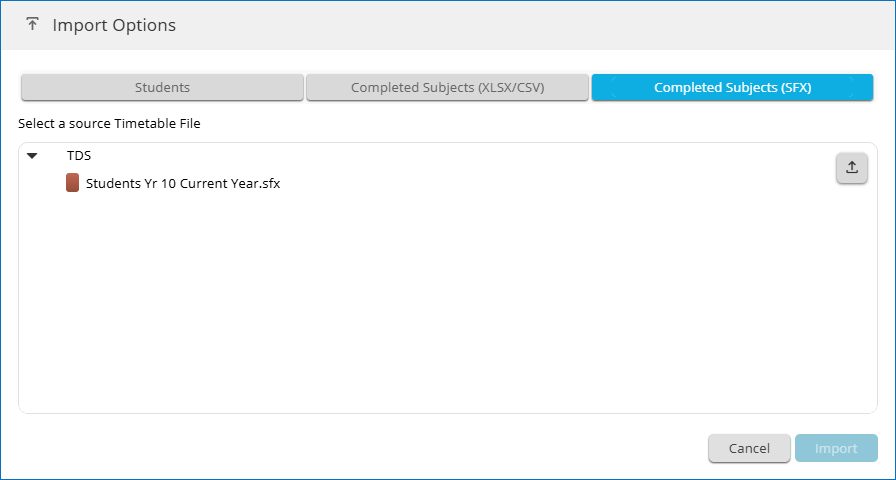
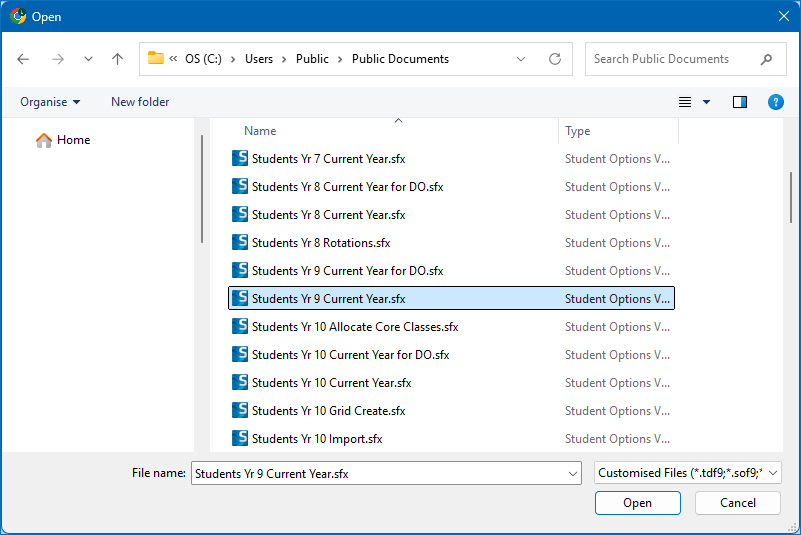
Browse to the location of the current file for the students in your Student Group Select the file and click Open |
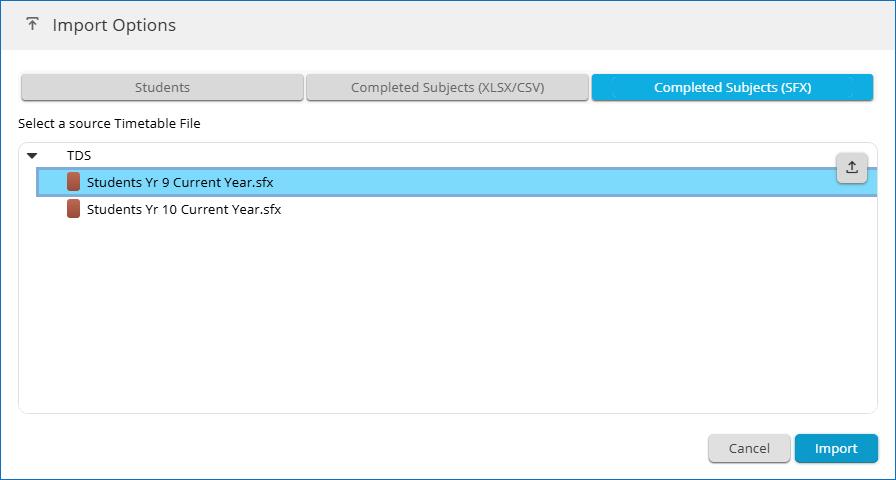
Select the file from the list and click Import |
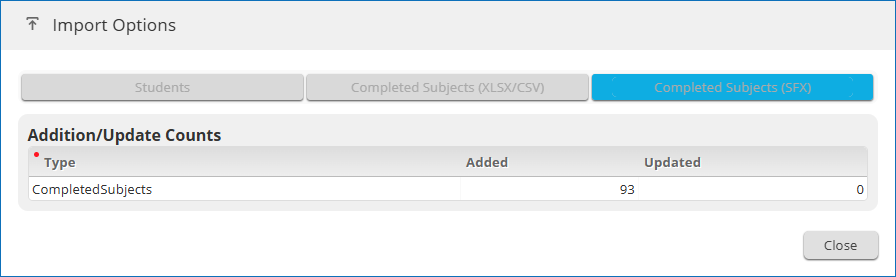
A summary of the data imported is displayed. Click Close |